
Free Course: Build Your First AI Agent with n8n Step by Step
Course Modules:
Module 1: Build Your First AI Agent with n8n Step by Step (You are here)
Module 2: Connecting tables and databases to n8n
Module 3: n8n AI Automation Guide: HTTP API, Telegram Bots, Search & Firecrawl
Table of Contents
The Basics of Working with n8n: Interface, Nodes, and Process Automation
The n8n platform is designed to automate various workflows. The entire n8n system is built around the concept of a workflow. The system interface features the following main tabs: workflows, credentials, and executions. One of the main elements of the interface is the “plus” button, which allows you to create either a new workflow or credentials. Credentials is a storage repository for your tokens, passwords, and keys used for authorization across various services.

The workspace in n8n is a canvas where elements are created. To create the first step, click the “plus” button. For example, you can create a manual process trigger. The blocks that make up n8n are called nodes. This is the second most important concept after workflows. If you click inside a block, you can see its settings. You can enable or disable a node (deactivate or activate it), run it, and configure a number of other parameters. Nodes have a “handle” that allows you to add new elements. For example, you can add an AI Agent node, which has a prompt field in its settings.
The main idea behind n8n is to connect various online services, applications, databases, and scripts, bringing them together into a single structure without writing code. It is a no-code or low-code tool. It saves time by reducing routine operations that are usually performed manually. An example of a workflow could be a process that runs on a schedule to generate a script for a video, produces the video itself based on the prompt, and then publishes the result on various social media platforms.
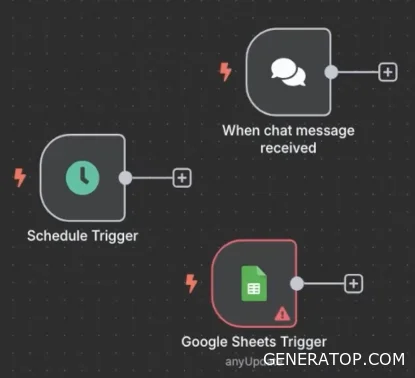
Complex structures consist of basic blocks. In n8n, there are trigger nodes that start the workflow and nodes that perform actions during the process. For example, the Telegram Trigger fires the moment a message arrives in the messenger. You can add an Edit Fields node to it, which is needed to edit fields in the transmitted data. There are triggers that launch the process on a schedule (Schedule), chat triggers that launch when a message is written in a secondary chat within n8n (useful for working with language models), as well as specific triggers for applications, such as Google Sheets, which fire when a change is made in the spreadsheet.
Data in n8n is transmitted in JSON format. JSON is a structure consisting of a “key” and a “value.” The key is the field name, and the value is the data itself. At the trigger’s output, an object is generated: an array (in square brackets) that contains objects (in curly brackets). N8n is a drag-and-drop application that allows you to interact with data without writing code. To pass a specific field to the next step, you can simply drag it with the mouse from the output window into the node settings. This helps avoid unnecessary steps and manual coding.
When working with Google Sheets, the Google Sheets node (Get Rows operation) is used. For authorization in the cloud solution, Google Mail is used, and for local deployment, OAuth2 is used. After authorization, n8n gains access to Google Drive, and you can select the desired spreadsheet and sheet. When extracting data, the spreadsheet columns become the keys of a JSON object, and the cell values become the values for those keys.
Logical nodes are used to manage data flows:
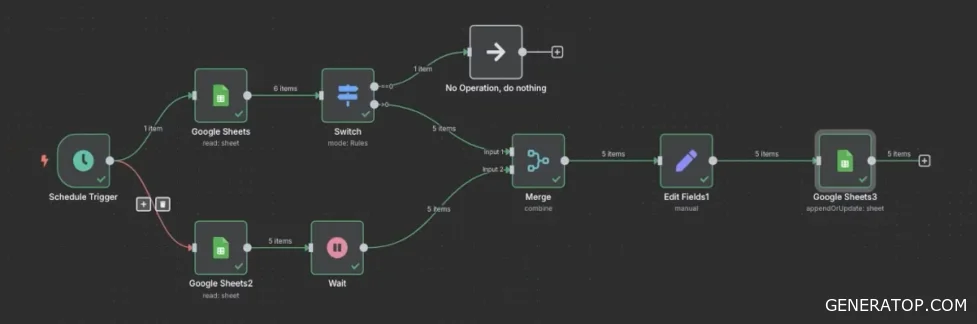
Merge: allows you to combine elements from different branches. In “Combine” mode, you can merge data from two spreadsheets based on a common field (e.g., product ID).
Wait: allows you to pause the process for a specified amount of time (e.g., one second).
If and Switch: the If node branches the process into two branches, while Switch branches it into multiple branches depending on specified conditions. For example, in Switch, you can configure filtering by a numerical value: if the price is greater than 500, the data goes to one branch; if it is less than or equal to 500, it goes to another.
No-Op: a node that does nothing, but is useful for understanding that data is flowing in a specific direction.
In the Edit Fields node, you can perform calculations. If you need to create a new “total” field as the result of multiplying price by quantity, drag the fields into the settings. Fields inside curly braces are variables. When enclosed in braces, they are treated as a string. To have them interact as numbers, you need to remove the braces around them and insert the multiplication operator—the asterisk.
To update data in the table, use the “Update row in sheet” operation. To let the node know which values to place in which fields, you need to link them manually by dragging the corresponding fields. You also need to select a column to identify the row (e.g., product ID) that needs to be updated. You can visually track the workflow execution in real time.
A special trigger—the Error Trigger—is used to monitor errors. It can be placed in the workflow so that, in the event of a failure, a notification process is triggered, such as sending a message to Telegram. If there is no ready-made node for a particular service (although there are over 400 of them), universal nodes are used:
HTTP Request: allows integration with any service that has an API. In the settings, you specify the URL, select the method, and enter the authorization key. You can use the “Import cURL” command to insert an example from the API documentation.
Code Node (or Function): allows you to integrate jаvascript or Python code to perform complex data transformations. The result of the code is returned via “return” and passed to subsequent nodes.
Setting up and launching a Telegram bot in n8n
Most well-known services have preconfigured nodes in n8n. For example, Telegram is already integrated into the system, and the parameters that need to be sent are predefined in its node description.
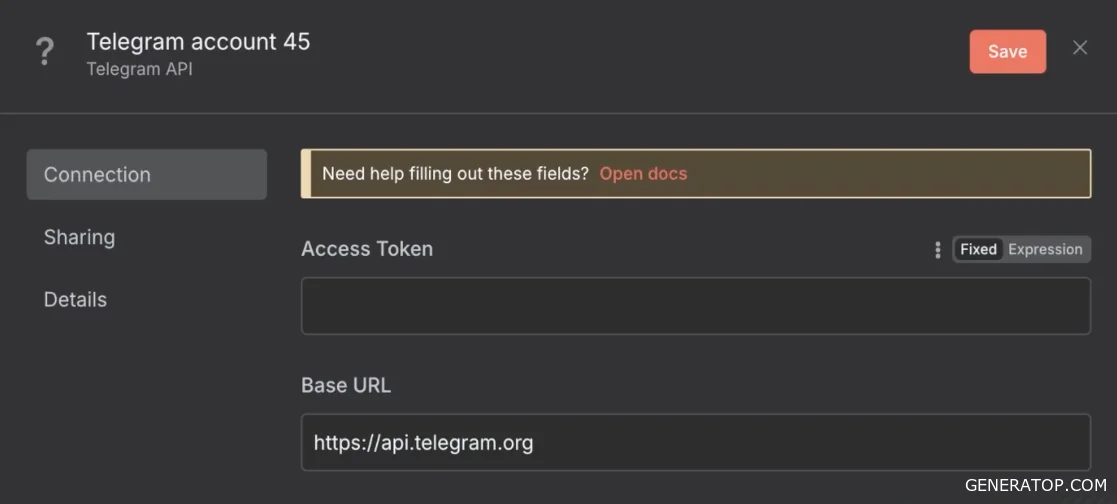
To work with the service, you need to obtain credentials. If the necessary tokens have not been saved in advance, go to the “Create” tab and generate them. In the case of the Telegram bot, an access token is used, which is issued by BotFather—a special bot in Telegram designed for creating and managing new bots. The obtained key is entered into the corresponding field in n8n to gain access to the service.
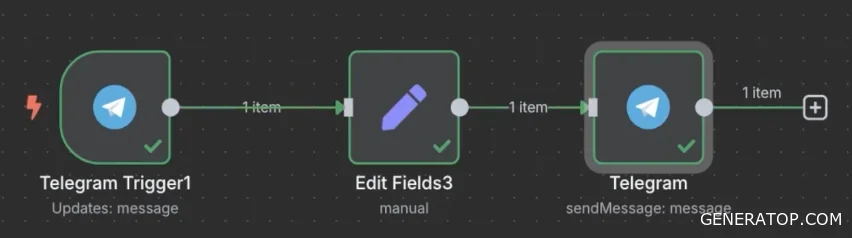
To create a simple bot, use a trigger for an incoming message in Telegram. To start data preprocessing, you must run the trigger by clicking the Execute Workflow button. If you encounter issues during startup, this may be due to warnings on other nodes. In this case, you should deactivate the interfering nodes so they do not block the workflow. It is also recommended to close all triggers that are not currently in use.
When the trigger becomes active, it begins “listening” to the network and waiting for an incoming message to the Telegram bot. After the user sends a message to the bot, an incoming request appears in n8n. The request data is displayed on the right side of the interface. When you navigate to the Edit Field (Set) node, the structure of the received data is displayed on the left.
You can extract only the necessary fields from the entire data array, such as the message text and chat ID. Directly transferring variables can result in a complex structure, as a variable may be located within several nested JSON objects. To simplify the final data format, you can rename the variable and remove unnecessary levels of nesting (for example, remove the reference to the message object).
To send a reply message, use the Telegram node with the Send Text Message action selected. The node is connected to the Edit Field node and configured as follows: the Chat ID is passed to the ID field, and the corresponding variable containing the text is passed to the Text field.
By default, n8n can add a technical footer to the end of messages. To remove the n8n tag, you need to click Add Field in the node settings, select Append n8n Attribution, and toggle it to “Off.” After executing the Execute Step, the message will be sent in its original form.
To ensure that the workflow runs continuously—rather than just once during a manual check—you need to switch the toggle from “Inactive” to “Active.” Once activated, the workflow will process every incoming action in real time, ensuring the Echo bot operates continuously.
Creating and configuring an intelligent AI agent in n8n
The AI Agent entity is used to create more complex workflows. Unlike a standard echo bot, an agent is capable of analyzing requests and using additional tools. Before configuring a new agent, you must deactivate any previously active workflows.
Working with the agent begins with the AI Agent node, in whose interface you can set the System Prompt. The System Prompt allows you to flexibly control the agent’s behavior by assigning it a role and communication rules. At the top level, the agent is a chat where you can test interactions. However, without connecting additional modules, the agent will not be able to answer questions.
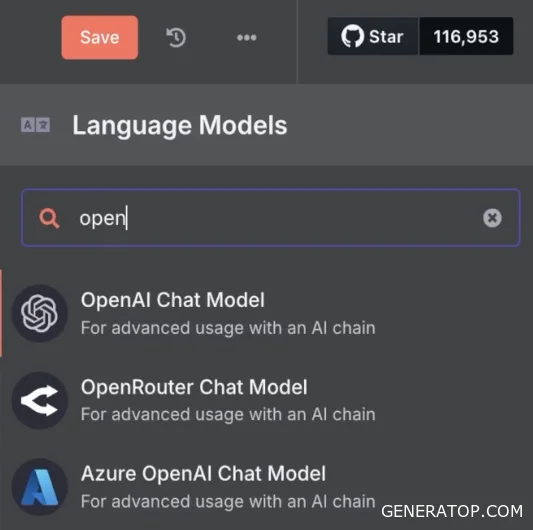
The first essential element for “bringing the agent to life” is the Chat Model. In n8n, there are ready-made nodes for integration with various services, such as OpenAI. After selecting a model and configuring the corresponding token, the agent gains the ability to generate responses to greetings and simple questions.
One of the problems with the base model is the lack of memory: if you tell the agent your name and then ask it again, it will not be able to give the correct answer, since each request is processed in isolation. To solve this problem, a memory mechanism is used, which is connected via a special connector (handle) on the agent node.
Specialized nodes are used to implement memory. In a simple case, Simple Memory is used—a simplified storage system that allows retaining a certain number of recent messages. For example, by setting the context window size to 5, the agent will remember the last five dialogue messages, allowing it to maintain the conversation context and remember user data.
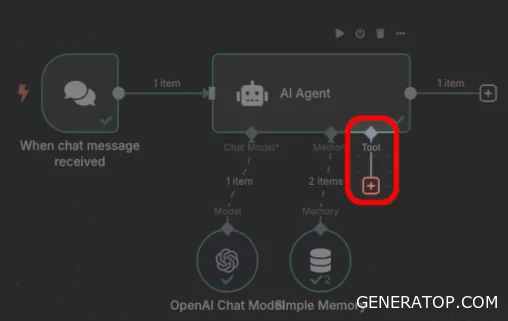
The agent can expand its capabilities using Tools. These are external functions that the agent calls upon to retrieve up-to-date data. An example of such a tool is an internet search. By connecting the appropriate tool, the agent will be able to answer questions about the current date or current world events by querying search engines in real time.
It is important to document the available tools in the system prompt so that the agent understands when and how to use them effectively. The agent settings also include the option to use an Output Parser. This is a mechanism that controls the response format. There are two main approaches to parsing:
- Using an additional language model that re-checks and structures the response.
- Using simple parsers where a specific example (template) of the output data is specified.
This allows you to receive strictly structured responses from the agent (for example, in JSON format) if this is necessary for further automation within the workflow.
Integrating the agent with Telegram and working with n8n templates
n8n is not a fully-fledged tool unless it is integrated with external services. Let’s give our echo bot some intelligence. To do this, we’ll replace the incoming request: we’ll turn off the current node, disable it, and add Telegram. We connect Telegram and test it. We’ll send a test message: “Hello, robot.” We receive an incoming request.
Let’s move on, run the agent, and see that execution has stopped with an error because the field has changed.
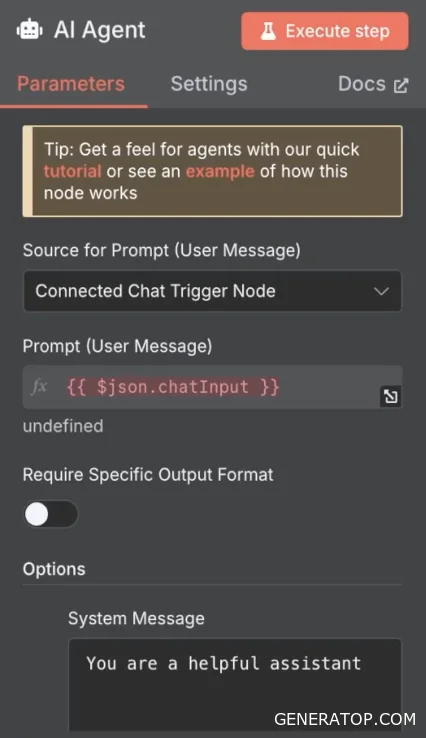
Let’s replace it with the Messenger ID. We write `define below` and insert the text message here. We run `execute`. We see that we still have an error in memory. We’ll change the field there as well. We go to Telegram and insert the Message ID. We return and run `execute`. Everything worked.
Let’s switch to Telegram. Paste the response we had here into this field. Drag the Chat ID from Telegram. It’s good practice to add a Field Edit node, but we didn’t do that, so we’ll manage without it; we can see that everything is working. Go to Telegram and test it: “Hi, bot. What’s your name?” We see that the bot didn’t respond. The thing is, we didn’t switch the workflow to active mode.
Now our bot will run continuously. We go to Telegram, test it, and send the same message. We see that it responded twice right away. Let’s check if it can Google: “Who is the current President of the United States?” We see that our agent didn’t go look up this question, even though we saw that it can do so. Sometimes agents don’t use tools, so they give incorrect answers. We’ll work on how to make the agent use the tool when necessary a little later.
Let’s check if it remembers information. Here, the assumption is that the error lies in the fact that we didn’t use memory quite correctly. Let’s save this key. Let’s enter a word, for example, “pencil.” Let’s try asking it to repeat the word. It has memory, but tools aren’t always used—we’ll learn how to work with that later. We’ll make our agent a little smarter iteratively. To make the agent even smarter, we need to create a correct, well-structured system prompt. We’ll cover that separately.
To create high-quality, functional workflows that operate with high precision, prove effective, and truly automate routine tasks, you need to devote enough time to practice. This course includes a series of fairly simple homework assignments that you need to complete in order to quickly get the hang of using basic mechanics and basic nodes, and then delve into more advanced topics. The course is designed so that you understand that n8n alone is not enough. It’s important to understand a range of technologies: what databases and nodes are available, how to work with them, how to interact with language models and get the most out of them, what MCP servers are, what RAG is, and how to use all of this effectively. We’ll cover all of that.
Another cool feature of n8n is its repository of ready-made workflows. If you browse this page, you’ll see that a large number of ready-made templates are available here.
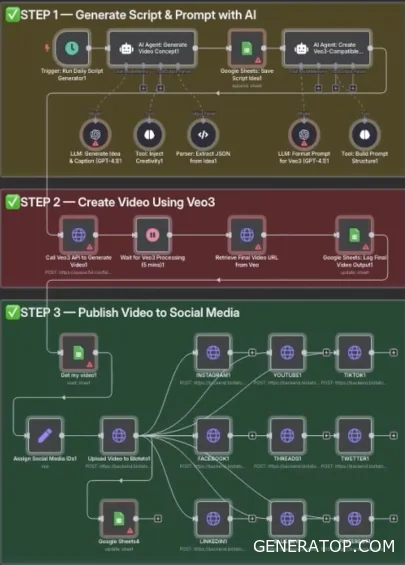
Some of them are paid, some are free. If you open one of them on the first few pages, you’ll see the workflow we discussed at the beginning. You can open them, use them, copy them, go to your workspace, and easily paste them in. You can then modify and adapt it to your needs.
n8n allows you to implement fairly complex pipelines. For example, there’s another massive process that you can easily copy and move to your workspace. From a bird’s-eye view, you can see that it’s quite complex. There’s some interesting logic here, but if you look at this workflow, you’ll realize that almost all the blocks are already familiar, with the exception of a few specific ones we’ll discuss a bit later. If you want to become skilled at implementing such automations, you need to practice as much as possible. If you encounter processes that are complex enough to automate, try breaking them down. Another good practice is to take complex workflows and recreate them from scratch. This is very helpful in the beginning, even though there’s already a whole repository of ready-made solutions. Reusing code speeds up the work, but it’s very important to get the hang of it first.