How to Create Stickman Animation with AI 100% FREE
Go to Claude, click the plus icon, and upload MD file with template.
stickman_storyboard_creator.md
# Role: Stickman Animation Storyboard Creator

## Instructions
1. **Analyze Input**: Read the user's story and the number of scenes requested.
2. **Stickman Style**: Always use this visual style: "Simple black line stickman, white background, minimalist style, expressive emotions, high contrast."
3. **Format**: For every scene, provide the content in a clear, easy-to-read list format (Not JSON).
4. **Voiceover**: After all scenes are listed, write a complete, engaging voiceover script for the whole video.

## Output Structure per Scene
**Scene [Number]**
*   **Image Prompt**: (Detailed visual description for Nano Banana PRO & GPT img 2)
*   **Image-to-Video Prompt**: (Motion and camera movement for Runway, Grk & Seedance 2)

---

## Final Step
**Full Story Voiceover**: (A complete narration script based on the total story analysis)

---
**Ready?** Please provide the Story and Number of Scenes.
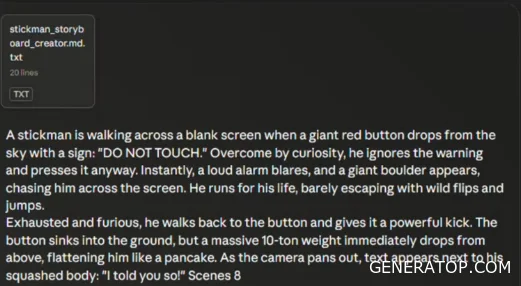
Now write your story in short form, just as I did. Then specify how many scenes you need. For example, I entered “scenes eight.” After that, click the “generate” button. Claude will generate detailed prompts for image generation, prompts for generating videos from images, and a complete script for voiceover.
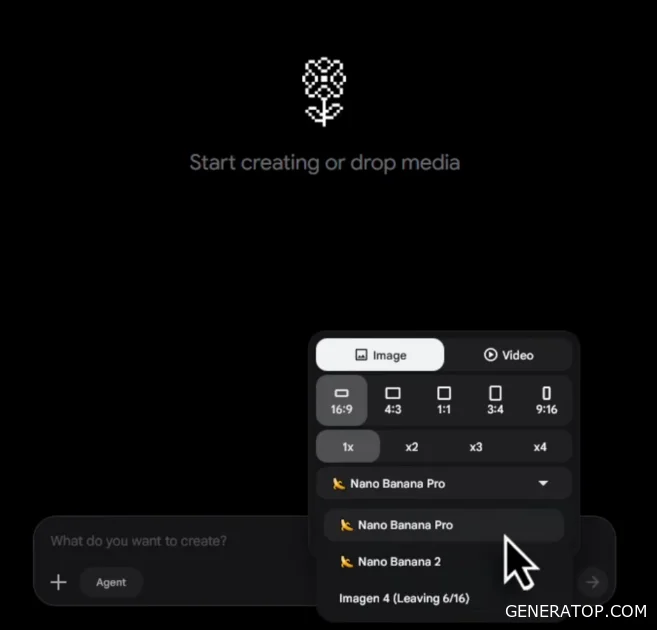
Now let’s move on to creating images. We’ll use Flow AI. Just click “New Project,” then select “Image Generation.” Choose a 16:9 aspect ratio and select “Nano Banana Pro” as the model. As you can see, this costs zero credits, which means you can create an unlimited number of images.
Then go back to Claude, copy the first image prompt, paste it into Flow AI, and click “Generate.” Once the image is ready, click the plus icon and add this image as a reference. Then copy the second image prompt from Claude, paste it into Flow AI, and click “Generate” again. You’ll notice that the character remains consistent across every image. Repeat the same process until you’ve generated all the images, then download them.
To create a video, click on “Scenes,” then select “Video” with a 16:9 aspect ratio. Choose Veo 3.1 Lite as the model. This costs 10 credits per generation, and you get 50 free credits every day. Upload the first image, then copy the prompt for generating a video from Claude and paste it into the prompt field. Click “Generate.”
If you run out of credits, you can use Google Vids instead. Simply sign in with your Google account, click on VEO, and select “Animate Image.” Make sure the VEO 3.1 model is selected. Set the aspect ratio to landscape, paste the prompt for generating the video, upload the image, and click “Generate.” Once the video is ready, click “Insert.” Then open the drop-down menu and download the video. Repeat the same process for all remaining images. Alternatively, you can also use 1AI, Kling, or Gemini to generate videos using their free credits.
MiniMax Audio will be used to generate voiceovers; it provides 10,000 free credits every month. Click on “Text-to-Speech,” then click “Switch Voice.” Open the filter, select “Male Voice,” and choose any voice you like. Now go back to Claude, scroll down, copy the voiceover script, and paste it into MiniMax Audio. Finally, click “Generate,” then download the audio. Now import all the video clips and the voiceover into your favorite video editor, adjust the timing, and your animated video featuring a stick figure is ready.
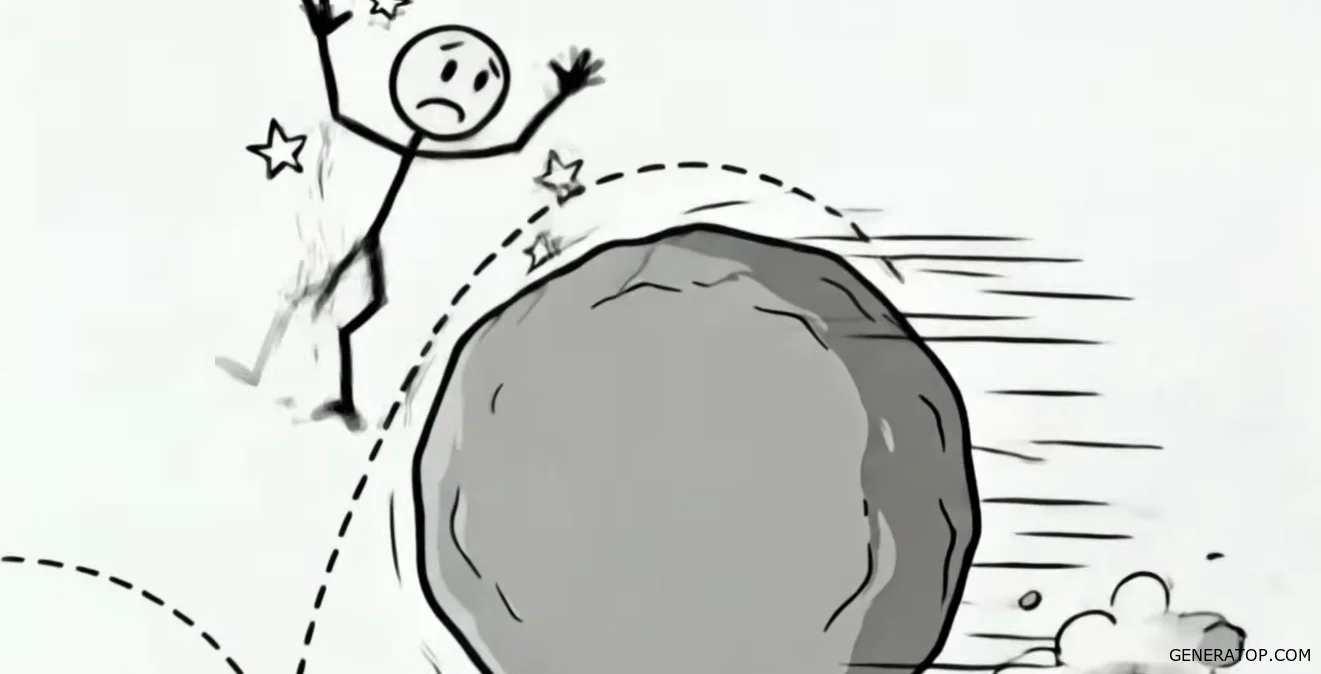
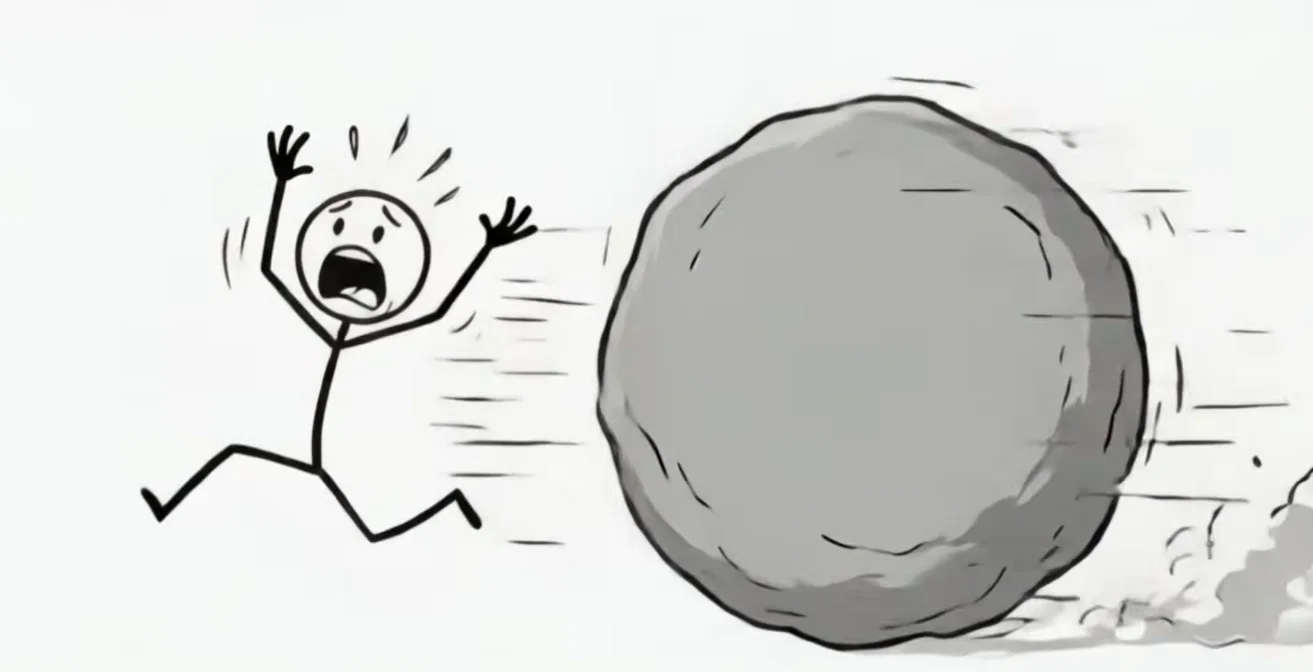
The script for the final video goes like this: our hero starts his day just like any other, walking along, going about his business, not a care in the world. Then, out of nowhere, a giant red button falls from the sky, and attached to it is a sign—a very clear sign—that says, “Do Not Touch.” Any sensible person would walk away, but our guy is already looking at it, already leaning toward it, already thinking, “What’s the worst that could happen?” He presses it. Of course, he presses it. Instantly, sirens wail, lights flash, and from somewhere in the distance comes a rumble—a very, very loud rumble. A boulder the size of a small house is hurtling toward him at full speed. He runs. He screams. He runs a little farther, but somehow, against all odds, he performs the most spectacular somersault you’ve ever seen, flies over the boulder, and lands on the other side. Safe. Alive. Barely. Did he learn his lesson? Absolutely not. He strides right back to that button, furious, and delivers the hardest kick of his life to it. The button sinks into the ground. He crosses his arms. He smirks. He thinks he’s won. He hasn’t won. A shadow—a very large shadow—falls from above; 10 metric tons of iron later, our friend is now considerably flatter than before, and the small sign floating next to him, still swaying gently, reads: “I told you so.”